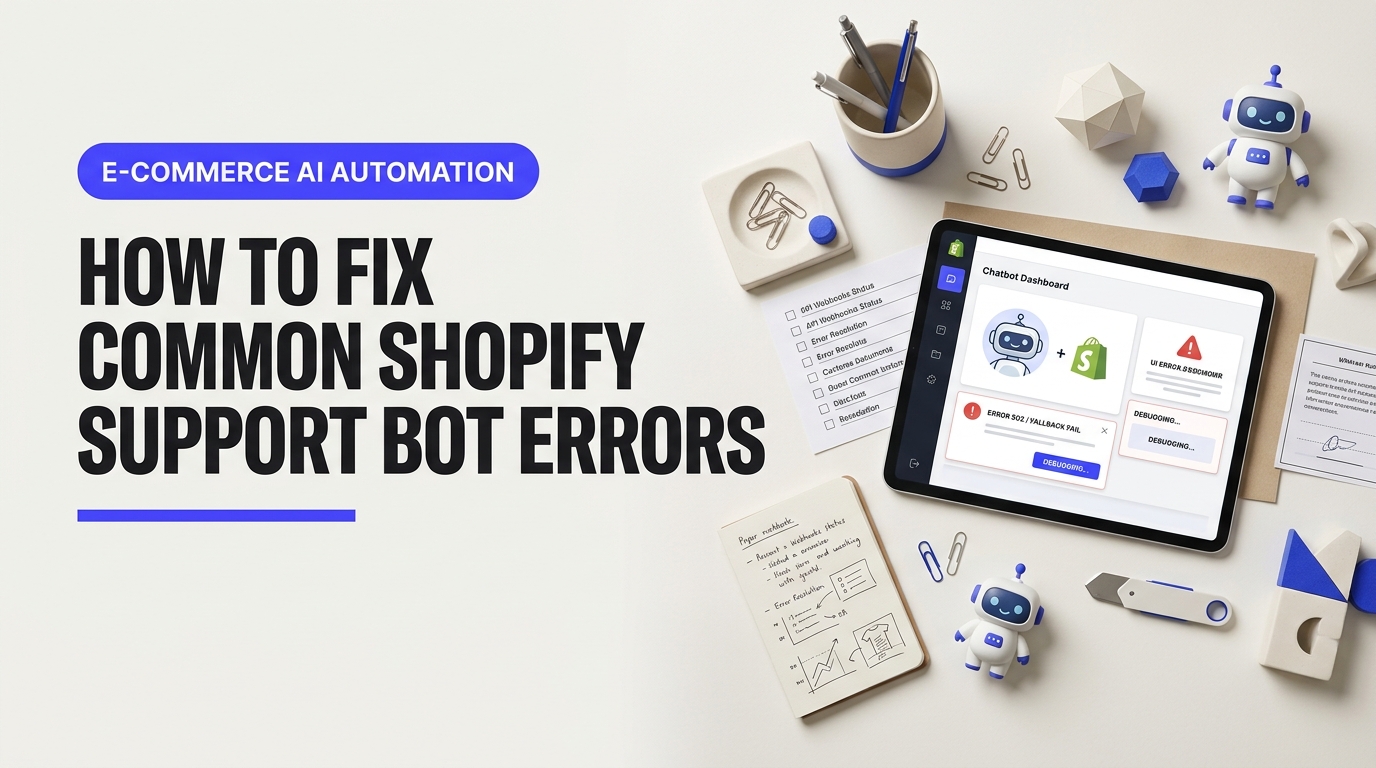
How to Fix Common Shopify Support Bot Errors - fix shopify support bot errors
You're stuck in an endless loop. You ask for help, but the automated assistant keeps giving you the same useless answers over and over again. If you need to fix shopify support bot errors, you aren't alone in this headache. E-commerce merchants lose valuable operational time every single day when Shopify's help assistant freezes, throws unexpected system errors, or completely blocks them from reaching a real human agent. Specifically addressing common, this guide explores how How to Fix Common Shopify Support Bot Errors - fix shopify support bot errors delivers practical, actionable value.
Table of Contents
- Why Shopify Support Bots Loop and How to Get Help Fast
- Why Does the Shopify Support Bot Keep Glitching or Infinite Looping?
- How to Diagnose What Is Breaking Your Shopify Chat Assistant
- Quick Hacks to Bypass Support Bot Loops and Reach Human Support
- How to Fix Shopify Support Bot Errors Step by Step
- How Can You Prevent Chatbot Session Failures in Shopify Admin?
- Restoring Seamless Support Operations for Your Shopify Store
Recent merchant complaints on Reddit's e-commerce forum highlight store owners running into brick walls during store outages or payout glitches. When automated assistance fails, your business stalls. Usually, these persistent loops stem from corrupted browser cache data, active session timeouts, or temporary server response delays on Shopify's end. While help desk platforms like Gorgias or Zendesk offer custom ticket routing for your own buyer tickets, troubleshooting core Shopify admin issues requires navigating Shopify's built-in assistant system.

We've created this walkthrough so you don't have to waste hours talking to a broken algorithm. You'll learn the root causes behind chat freezes, simple browser tricks to clear session blocks, and proven steps to easily break out of automated prompts to connect with live human support.
Why Does the Shopify Support Bot Keep Glitching or Infinite Looping?
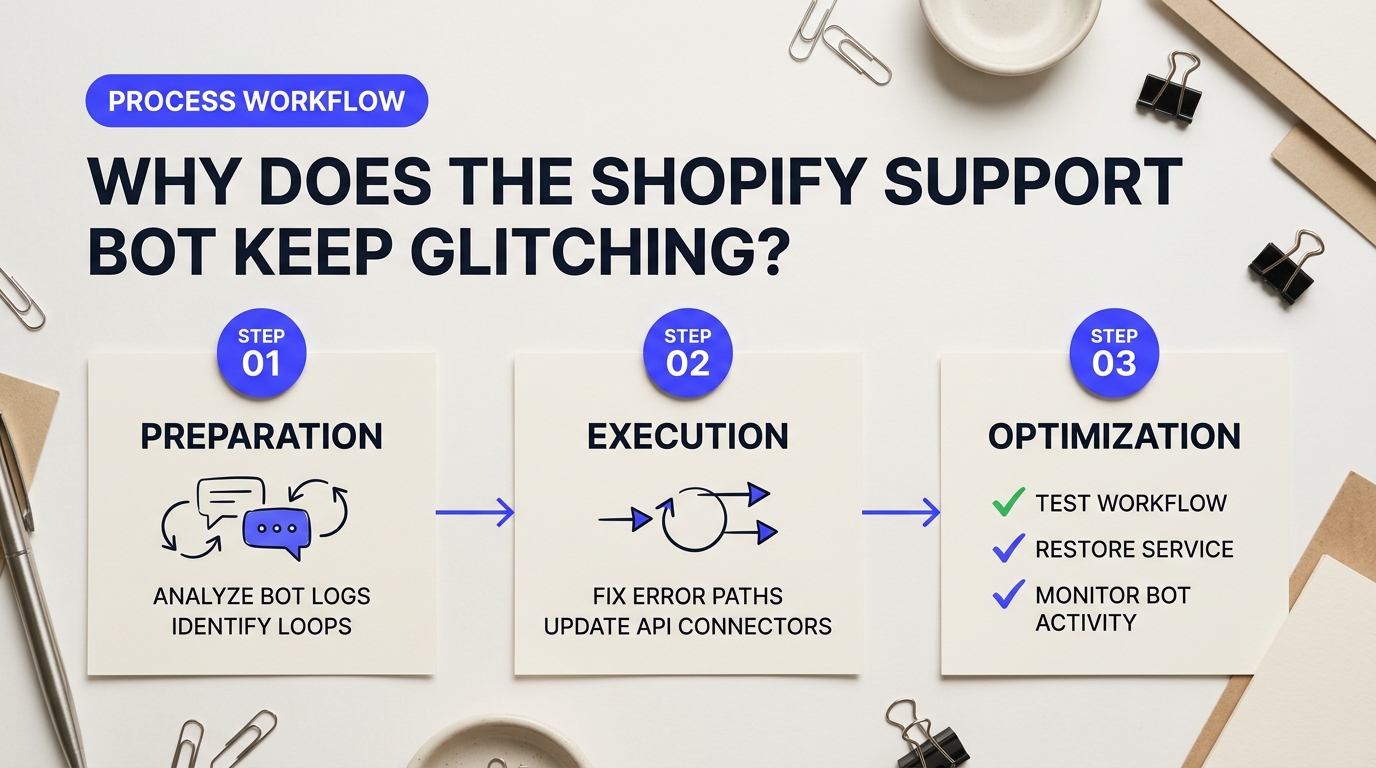
You click the chat icon inside your Shopify Admin. You type an urgent question about a locked checkout setting or missing payout. Instead of connecting you to a human agent, the screen blinks. The assistant prompts you to select your store, asks for your issue, and then resets back to the start. You're stuck in an endless loop. Store owners frequently air out these frustrations in e-commerce community discussions about Shopify chat glitches. These breaks happen because automated web widgets depend on a delicate chain of browser memory, user permission tokens, and cloud servers.
Think of an authentication token like a temporary pass at a venue. When you log into your Shopify dashboard, the server hands your browser an encrypted digital pass so the chat bot knows who you are. If that pass expires while you're typing, the bot loses your identity instantly. It panics and sends you straight back to the initial prompt. Meanwhile, your web browser saves old file fragments in its local cache memory to speed up loading. If Shopify updates its help system while your browser relies on old files, the widget script breaks in the background.
Technical Triggers Behind Shopify Support Bot Errors
When you attempt to fix shopify support bot errors, you must first pinpoint which layer of the web stack is failing. Here is how local browser settings and cloud-side bottlenecks trigger infinite loops:
| Glitch Trigger | What Happens Under the Hood | Everyday Analogy |
|---|---|---|
| Expired Auth Token | Session keys time out while waiting for server handshakes. | A security guard revoking your temporary badge while you're mid-sentence. |
| Corrupted Browser Cache | Outdated layout scripts collide with new server code updates. | Trying to navigate a newly built city using a map from 10 years ago. |
| Ad-Blocker Script Conflict | Browser extensions block tracking pixels required by the widget. | A walkie-talkie losing signal because someone turned on a jammer. |
| API Rate Limit Throttling | Shopify servers drop active request queues during traffic spikes. | A store cashier closing the register when 500 customers rush the line. |
Browser extensions cause a huge portion of chat widget errors. Privacy tools like uBlock Origin or strict cookie blockers treat the chat widget's tracking scripts like unwanted marketing trackers. They block the code mid-execution. The bot waits for a signal that never arrives, freezing the conversation completely.
Backend spikes trigger identical problems on Shopify's side. When thousands of merchants experience platform updates at once, Shopify's servers restrict incoming requests to protect core databases. The automated assistant drops your session without warning. While native admin assistants rely on these sensitive web scripts, growing merchant teams often manage customer communication using dedicated help desk tools like Gorgias or Zendesk. These specialized platforms run on isolated servers with direct API connections, avoiding the browser cache issues that break web chat widgets.
Knowing whether the loop stems from your browser cache or server throttling gives you the exact strategy to fix shopify support bot errors before they disrupt your daily operations.
How to Diagnose What Is Breaking Your Shopify Chat Assistant
Your support chat widget froze again. You clicked a button, expected a human transfer, and got an infinite spinning wheel instead. When urgent store issues break your day, fighting an unresponsive automated assistant feels exhausting. You don't have to guess why it is failing. Following a clear diagnostic procedure lets you isolate the exact point of breakdown within minutes.
Many store owners report getting trapped in endless verification loops. As highlighted in Reddit e-commerce community discussions on chatbot rendering stability, these glitches frequently stem from local browser conflicts or silent API permission rejections rather than permanent platform outages. Follow these sequential steps to uncover what is breaking your session.
Step 1: Check Platform Infrastructure Status
Do not start changing browser settings until you confirm Shopify's system is fully operational. Server updates and cloud outages happen. Visit the official status page for Shopify Admin services. Look specifically at the operational indicators for authentications and support portal operations. If a green checkmark is missing next to core admin tools, the bot failure is on their end. You must wait for their engineering team to deploy a patch.
Step 2: Test in a Clean Incognito Window
Ad blockers, cookie managers, and aggressive privacy extensions are famous for breaking support widgets. Most ad blockers classify chat scripts as invasive tracking software and block their execution. Open a fresh private or incognito window in Google Chrome, Mozilla Firefox, or Apple Safari. Log into your admin panel and launch the help center again.
If the chat assistant loads correctly in incognito mode, your main browser configuration is the culprit. You can quickly fix the issue by clearing your browser cache or whitelisting Shopify domains inside your security extensions.
Isolating System Network Flaws to Fix Shopify Support Bot Errors
If private browsing does not solve the issue, inspect the hidden network traffic passing between your web browser and the platform servers. Using native browser tools helps you pinpoint silent failure points that standard web pages hide.
Press F12 (or Cmd + Option + I on macOS) to open Developer Tools. Select the Network tab, then filter by Fetch/XHR requests. Refresh your page and click the support chat widget to trigger the script. Look for red lines in the request log. You will typically spot two main error codes when trying to fix shopify support bot errors:
- 403 Forbidden Error: The server recognizes you, but your current session lacks authorization to load the chat payload. This often happens when cross-site tracking cookies are blocked or session tokens expire.
- 500 Internal Server Error: The assistant server encountered an unexpected failure while trying to pull your account data. This indicates an active backend database or API glitch.
Here is how standard web tools compare when inspecting these chat session failures:
| Diagnostic Tool | Primary Strengths | Best Use Case | Cost Tier |
|---|---|---|---|
| Chrome DevTools | Native to browser, zero setup, real-time HTTP response code tracking. | Catching 403 permission blocks and 500 server crashes instantly. | Free (Built-in) |
| Postman | Deep REST API testing, header manipulation, payload verification. | Testing custom store app webhooks and third-party bot integrations. | Free / Paid Tiers |
Step 3: Audit Admin Permission Settings
Staff accounts often hit invisible walls inside the help portal. If you are logged in using a restricted staff account, the chat assistant may fail when fetching store account details. It attempts to read protected billing, app, or domain settings, hits a silent permissions block, and freezes.
Have the store owner review your staff permissions under Settings > Users and permissions. Granting temporary full store management permissions often resolves looping behavior on staff accounts. Knowing how permissions impact user sessions gives you a clear path to fix shopify support bot errors without waiting for standard email ticket escalation.
"Checking your browser console for 403 network responses saves hours of back-and-forth email messages. Most bot crashes are just silent authorization tokens timing out in the background."
Quick Hacks to Bypass Support Bot Loops and Reach Human Support
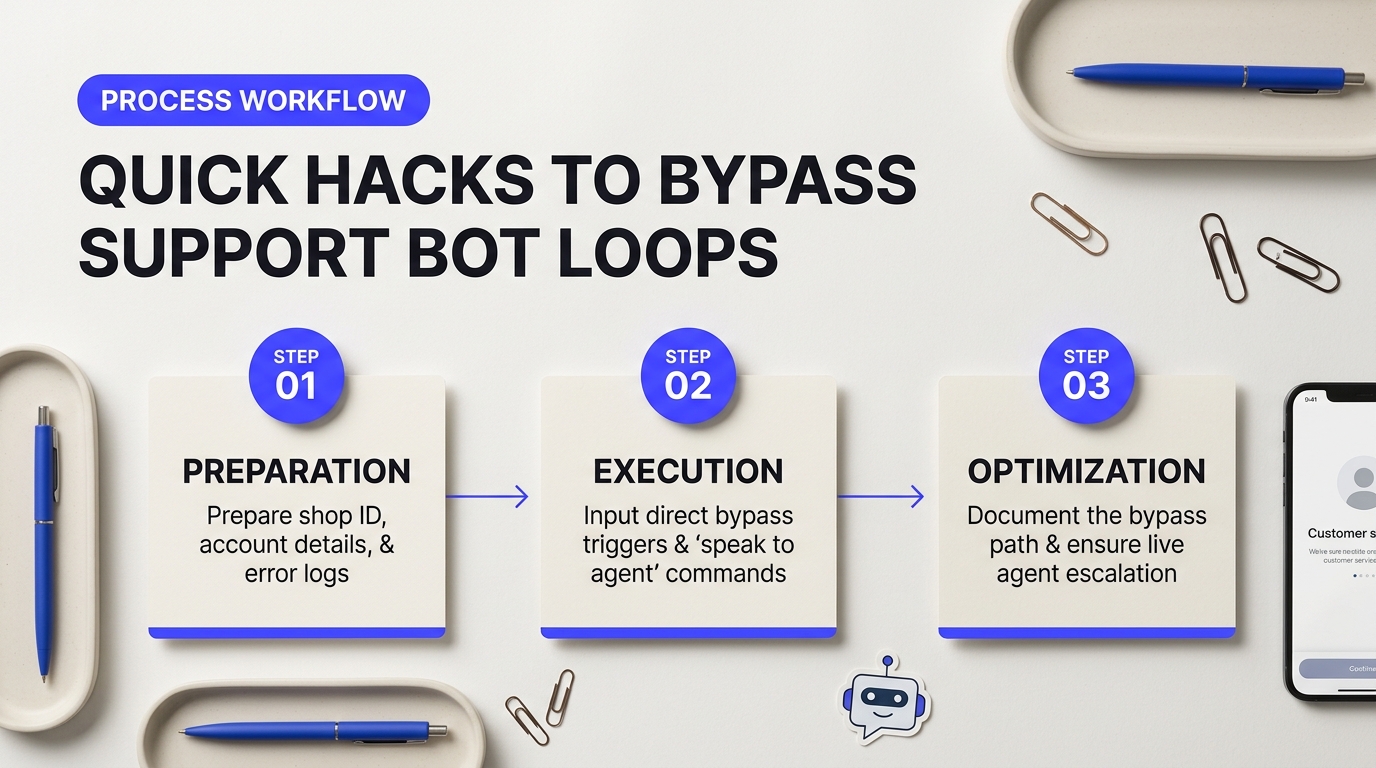
Smart Hacks to Fix Shopify Support Bot Errors and Escape Chat Loops
You're stuck. The virtual assistant keeps asking you to rephrase your issue over and over. Every time you click the button to request real assistance, the page refreshes and resets your conversation back to step one. Automated loops ruin your day, especially when your checkout is malfunctioning or your payouts are delayed. Many store owners sharing experiences on Reddit's e-commerce merchant community report losing hours trying to navigate broken automated help widgets during peak sales windows. When you need to fix shopify support bot errors rapidly, standard clicking won't work. You need specific bypass phrases, alternative entry portals, and backdoor escalation routes to reach a live support representative.
Which Trigger Phrases Force an Immediate Human Handoff?
Shopify's automated support chat relies on natural language processing to categorize requests. Typing generic phrases like "help me" or "my app isn't working" causes the system to send you back into help documentation loops. To force the algorithm to pass your session to a queue, type explicit high-priority compliance triggers into the chat box:
- "Transfer to human specialist" or "Agent availability check" — Direct commands that bypass standard diagnostic questions.
- "Store offline loss of revenue" — Triggers immediate priority routing because system downtime directly impacts platform transaction fees.
- "GDPR erasure request" or "Legal compliance data privacy" — Automated tools hand off regulatory and privacy topics to tier-2 staff to prevent compliance violations.
- "Billing discrepancy urgent escalation" — Flags the conversation for account management specialists handling financial accounts.
If the chat assistant responds with another automated article link, don't click the link. Reply directly with "This did not solve my issue, connect to human". Doing this twice usually forces the system interface to generate a manual ticket or callback request form.
How Do You Access Hidden Direct Support Portals?
You don't always have to use the main Help Center homepage. Standard landing pages route every visitor through automated screening bots. You can skip those bots by taking different paths into the system.
If you hold a developer or partner account, open your dashboard first. Support tickets created within the Partner Portal route directly to specialized partner support queues. These queues skip the tier-1 chat screening entirely. Similarly, if your brand runs on Shopify Plus, skip public chat widgets altogether. Open your Organization Admin view to launch your dedicated support channel or contact your assigned Merchant Success Manager.
When the main chat widget completely freezes, clear your browser cookies or open an incognito window. Fresh browser sessions clear corrupted local storage tokens that cause chat widgets to loop continuously. For step-by-step technical instructions on clearing session storage, review this comprehensive support escalation walkthrough.
What Alternative Support Channels Work Best?
"When our chat widget broke down completely right before a product launch, reaching out through social channels got our ticket escalated to a supervisor in under twenty minutes."
Public channels work well because support teams monitor brand channels constantly. Send a direct message to @ShopifySupport on X. State clearly that the automated help center is looping and provide your store domain. Avoid sharing passwords or private billing numbers publicly, but ask for an explicit escalation link.
Official discussion boards are another solid option. Staff members actively moderate posts on the official community platform. Create a post explaining that technical errors are blocking you from opening a standard ticket. Community managers can verify your account details in the backend and manually open a ticket for you.
How Do Top Helpdesk Platforms Prevent Bot Loops for Customers?
If you're managing customer service for your own e-commerce store, make sure your buyers don't get trapped in broken chat loops either. Picking reliable helpdesk software keeps your customer support running smoothly.
| Support Platform | Shopify Integration Depth | Bot-to-Human Transfer Reliability | Pricing Model |
|---|---|---|---|
| Gorgias | Native real-time order editing inside chat | Instant automatic transfer on customer frustration detection | Volume-based starting around $10/month |
| Zendesk Suite | Extensive enterprise integration options | Highly customizable routing triggers and workflows | Per-agent seat pricing starting around $55/month |
Using platforms like Gorgias or Zendesk ensures your storefront handles support requests cleanly. Set up fallback rules so your customers always have a clear path to reach your team when automated answers fall short.
How to Fix Shopify Support Bot Errors Step by Step
Resolving persistent glitches inside your admin workspace requires a structured technical approach. When automated assistants hang, refuse to load, or repeat script fragments, the root cause usually lives within your browser's local state or misconfigured app permissions. Follow these direct troubleshooting steps to clear bad data and restore active communication with help services.
Flush Local Storage and IndexedDB Data
Stale browser data breaks web widgets. When you open the assistant inside your dashboard, your web browser saves temporary conversation logs into local storage. If these saved logs get corrupted, the script crashes on launch.
Clearing this data forces the widget to download fresh code from server endpoints. Open your browser's developer tools by pressing F12 or Cmd + Option + I on Mac. Navigate to the Application tab (or Storage in Firefox). Expand the Local Storage dropdown menu on the left side, right-click your domain, and select Clear. Do the same for IndexedDB. Close developer tools and refresh your browser tab.
Purge Corrupted Shopify Admin Session Cookies
Session cookies maintain your secure connection to back-end services. If your active token desynchronizes from your merchant profile, the chat widget drops websocket connections. You'll see infinite loading spinners or generic error messages.
You don't need to delete your entire browser history to clean these up. Select the padlock icon next to your URL bar in your browser. Click on Cookies and site data, then choose Manage cookies. Search for and delete these specific key entries:
_shopify_s_shopify_y_master_account_sessionshopify_pay_user
Refresh the web page after deleting these cookies. You'll be prompted to sign back into your account. This action re-establishes a fresh security token between your browser and administrative servers.
Re-Authenticate Storefront and OAuth Credentials
Sometimes your user session appears valid, but your underlying OAuth access permissions have expired. This desync leaves your browser trapped in a half-authenticated state. The main dashboard works fine, but security-restricted tools like live chat fail silently.
To resolve this, log completely out of all active store profile sessions. If you manage multiple store accounts under a single login, switch to each profile and explicitly click Log out. Clear your active browser tabs. Open a fresh window, visit your primary log-in portal, and enter your credentials again. This rebuilds your OAuth token scopes from scratch.
Audit Third-Party Helpdesk Integrations to Fix Shopify Support Bot Errors
Installing multiple customer messaging applications often creates script conflicts. Customer service software solutions like Gorgias or Tidio inject custom JavaScript directly into your admin environment and storefront pages. When these external scripts fight for control over DOM elements, native help widgets fail to render.
Script collisions occur when two separate messaging widgets attempt to attach event listeners to the same window object simultaneously.
You can identify conflicting software by toggling app permissions within your administrative panel:
- Navigate to Apps and sales channels in your settings menu.
- Select your installed third-party communication tools.
- Temporarily revoke app embedding privileges or deactivate their storefront widgets.
- Open a private incognito browser window and test the main help interface.
If the standard system assistant functions correctly after disabling your third-party tools, your custom apps are blocking page scripts. Check out recent discussions on store owner support workflows to see how peer merchants structure app permissions without breaking core administrative tools.
Reset the Embedded iFrame Sandbox via DevTools
The native assistant runs inside an isolated iFrame container. This security sandbox prevents outside page elements from tampering with sensitive account actions. If this isolated window freezes, standard page refreshes might not reset its internal memory context.
Force a manual hard reset of the frame container using your browser console. Press F12 to open Developer Tools, then click the Console tab. Change the JavaScript execution context dropdown from top to the specific frame named user-support-iframe (or similar helper frame name). Paste the following snippet and press Enter:
window.location.reload(true);
console.log("Support frame manually reset.");
This command clears memory allocations inside the child window while keeping your parent admin workspace active. The frame reloads immediately and requests fresh configuration scripts.
Evaluating Native Support Bots vs Third-Party Alternatives
Many growing brands ask if relying on built-in automated assistance is cost-effective compared to third-party tools. Built-in system assistants cost nothing extra, but script stability issues occasionally derail urgent inquiries. Enterprise helpdesks require a monthly subscription, but offer dedicated fallback routes when automated chat systems fail.
| Feature & Metric | Native Platform Bot | Gorgias Integration | Tidio Automated Helpdesk |
|---|---|---|---|
| Base Cost | Free (Included in subscription) | Starts at ~$10 to $60/month | Free tier, paid plans from ~$29/month |
| Setup Time | Zero setup required | 15 - 30 minutes API linkage | 10 - 20 minutes template setup |
| Fallback Reliability | Subject to admin frame crashes | High (Independent web dashboard) | High (Dedicated standalone app) |
| Script Isolation | Runs inside main Admin iFrame | Runs via isolated external SDK | Runs via lightweight web widget |
If your team handles high ticket volumes daily, maintaining a secondary third-party channels software gives you an immediate backup when primary admin chat services undergo maintenance or suffer script errors.
How Can You Prevent Chatbot Session Failures in Shopify Admin?
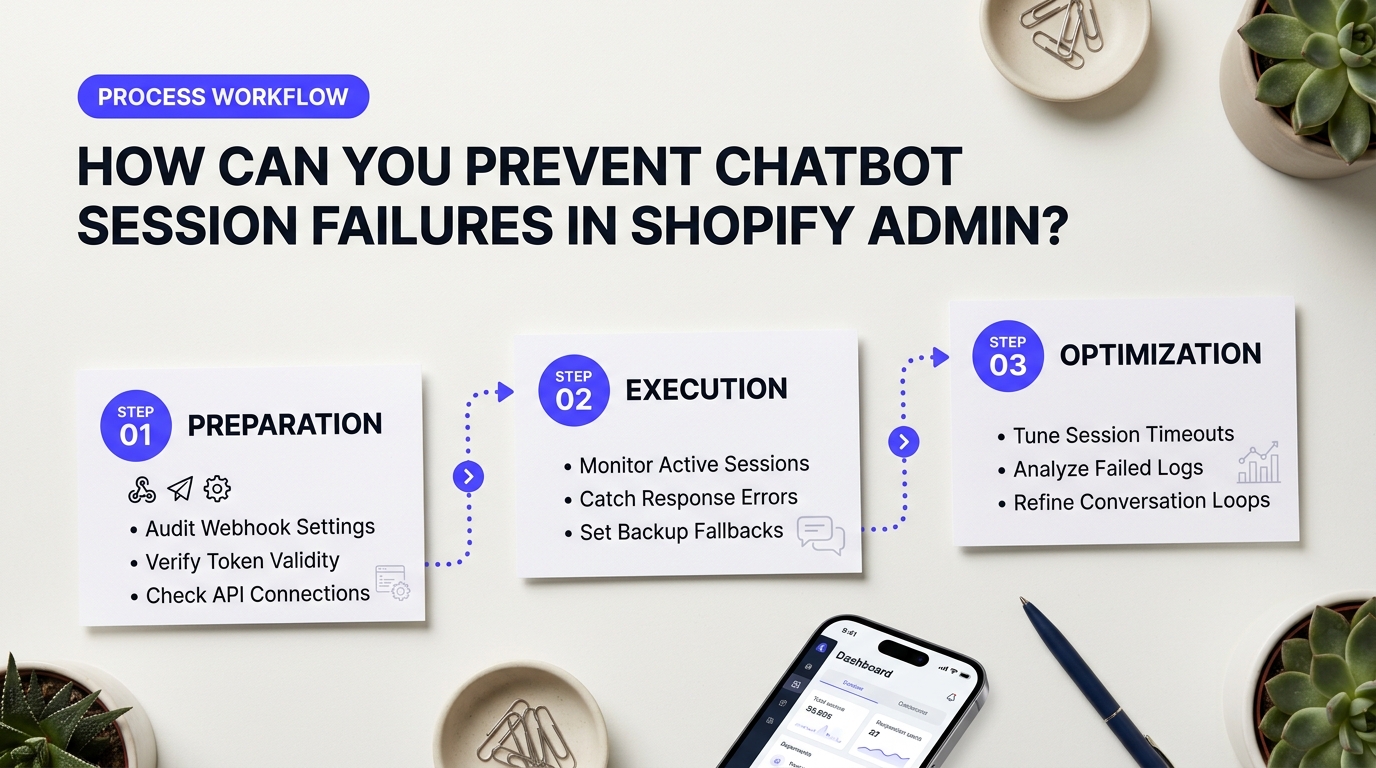
Session failures don't happen by magic. They happen when browser privacy settings, stale cookies, or mixed account credentials chop up the communication link between your store dashboard and Shopify's help servers. Preventing these breaks requires basic system hygiene rather than constantly clearing your browser cache after every freeze.
Whitelisting Admin Domains to Fix Shopify Support Bot Errors
Ad blockers like uBlock Origin and privacy tools like Privacy Badger often mistake support scripts for unwanted tracking scripts. When an extension blocks those background calls, the chat window opens, but the digital handshake fails. The bot gets stuck waiting for a authorization code that your browser silently dropped.
Whitelist your admin workspace completely. Add both *.shopify.com and *.myshopify.com to your ad blocker's explicit allowlist. If you use browser shields like Brave Shields or Safari Intelligent Tracking Prevention, set them to allow cross-site state tracking for your admin dashboard. Doing this helps store owners fix shopify support bot errors before they derail an urgent technical request during peak sales events.
Maintaining Session State across Multiple Store Accounts
Do you manage multiple Shopify storefronts? Switching between accounts inside separate tabs of the same browser window creates token confusion. Think of a session token like a paper pass at a theme park entrance. When you switch tabs from Store A to Store B, your browser overwrites your original pass. The chat assistant checks your pass, sees a mismatched store ID, and freezes up.
- Use Isolated Browser Profiles: Set up distinct browser profiles in Chrome or Brave for each store. This keeps cookies and storage isolated.
- Use Firefox Container Tabs: Firefox Multi-Account Containers isolate session data per tab so your logins don't mix up.
- Log Out Cleanly: End your active session completely before logging into a different merchant account on a shared computer.
Many store managers report that moving to separate browser profiles stopped almost all account authentication freezes. As highlighted by merchants discussing e-commerce store workflows on Reddit, profile isolation cuts daily login glitches to zero.
App Hygiene and Secondary Support Routing Rules
Native bots are handy, but relying on a single communication path exposes your operations to risk. Keeping your installed admin tools updated stops legacy JavaScript libraries from conflicting with core dashboard scripts. Outdated third-party apps can inject conflicting code into your pages, breaking active chat scripts instantly.
Establish backup escalation rules outside the standard chat widget. When built-in tools fail, having direct email access, partner priority queues, or an integrated help desk keeps your team moving forward.
| Channel Strategy | Native Admin Bot | Dedicated Helpdesk (Gorgias or Zendesk) |
|---|---|---|
| Session Reliability | Sensitive to browser privacy blocks | High reliability via isolated API tokens |
| Setup Time & Cost | Free (Default in Admin) | Paid plans ($10–$300/mo, 1 hour setup) |
| Fallback Options | Stuck in automated loop when broken | Direct email conversion & ticketing fallback |
Evaluating specialized software like Gorgias or Zendesk provides growing e-commerce teams with a dependable backup. Native support is free, but alternative ticket routing pays for itself the moment an admin widget goes dark during a major store launch.
Restoring Seamless Support Operations for Your Shopify Store
Getting caught in an automated chat loop during an active store issue is frustrating. When you know how to fix shopify support bot errors, you eliminate hours of wasted downtime and get your business back on track. Resolving these glitches starts with simple browser maintenance, such as clearing local site data and disabling aggressive ad blockers. If the virtual assistant stalls mid-conversation, forcing a hard reset or using recognized trigger phrases like "speak to a representative" usually breaks the loop.
Automation saves time. It shouldn't block access to real human help. Merchant operations run smoothly only when automated chat systems work alongside reliable escalation pathways. While Shopify's built-in virtual assistant handles basic account queries well, growing brands often integrate dedicated helpdesk platforms like Gorgias or Zendesk to maintain control over their own merchant and customer service workflows. These specialized tools provide clear fallback rules, ensuring support tickets reach human agents instead of disappearing into an infinite loop.
Reliable support infrastructure isn't just a convenience—it's protection for your daily revenue.
Store owners frequently share their operational frustrations across online e-commerce communities. As highlighted in Reddit discussions on Shopify support bot alternatives, small teams often suffer when automated help desks fail without an obvious backup option. The consensus is simple. Relying strictly on a single automated chat assistant leaves your business vulnerable when technical glitches strike during high-traffic sales periods.
If your administrative workflows stall, knowing how to fix shopify support bot errors through browser resets and direct bypass commands keeps your lines of communication open. We've seen that the best defense is a proactive support setup. Keep your admin session clean, bookmark direct support escalation URLs, and don't hesitate to switch browsers or devices when the chat widget freezes. Taking these practical steps ensures your store stays operational, fully supported, and ready for continuous growth.